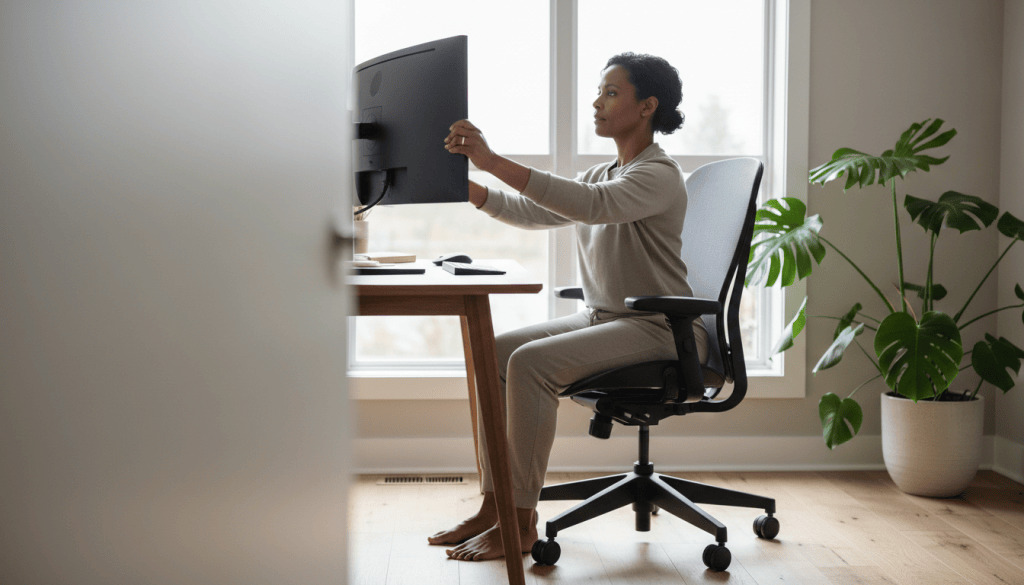
Quick answer: A comfortable home workspace should fit your body and tasks—not force you into a single perfect posture. The U.S. Occupational Safety and Health Administration (OSHA) recommends adjustable seating, neutral positioning, comfortable monitor placement and opportunities to change posture.
If your home office consists of a laptop, a kitchen chair and whatever corner happens to be quiet, you may notice neck tension, awkward reaching or screen glare during a long day. You do not necessarily need a new standing desk or expensive ‘ergonomic’ chair. First, review what you already have and make practical adjustments.
What makes this different from a movement-break routine?
Movement breaks are about what happens between work tasks. This guide focuses on the equipment and layout you use while working: where your screen sits, how your chair supports you, and whether your keyboard and mouse force awkward reaches. Both ideas can complement one another.
OSHA’s computer-workstation guidance does not describe one universal posture that fits everyone. Body size, corrective lenses, accessibility needs and tasks can all change what is comfortable.
1. Place the screen where you can read without leaning
Comfortable Desk: 3 Checks
1. Set up your screen: Find a comfortable height and reduce glare.
2. Support your body: Keep feet supported and avoid awkward reaching.
3. Change position: Take short comfortable movement breaks.
A monitor directly in front of you usually makes it easier to avoid twisting the neck. OSHA describes a comfortable viewing distance that often falls around 20–40 inches, depending on the display and the reader. The top line of the screen should typically be at or below eye level, with adjustments for readers who use multifocal lenses.
Do not force a measurement if it makes you squint or lean forward. Increase text size and adjust screen placement until you can read without moving your head into an uncomfortable position.
2. Review how your chair supports your back and feet
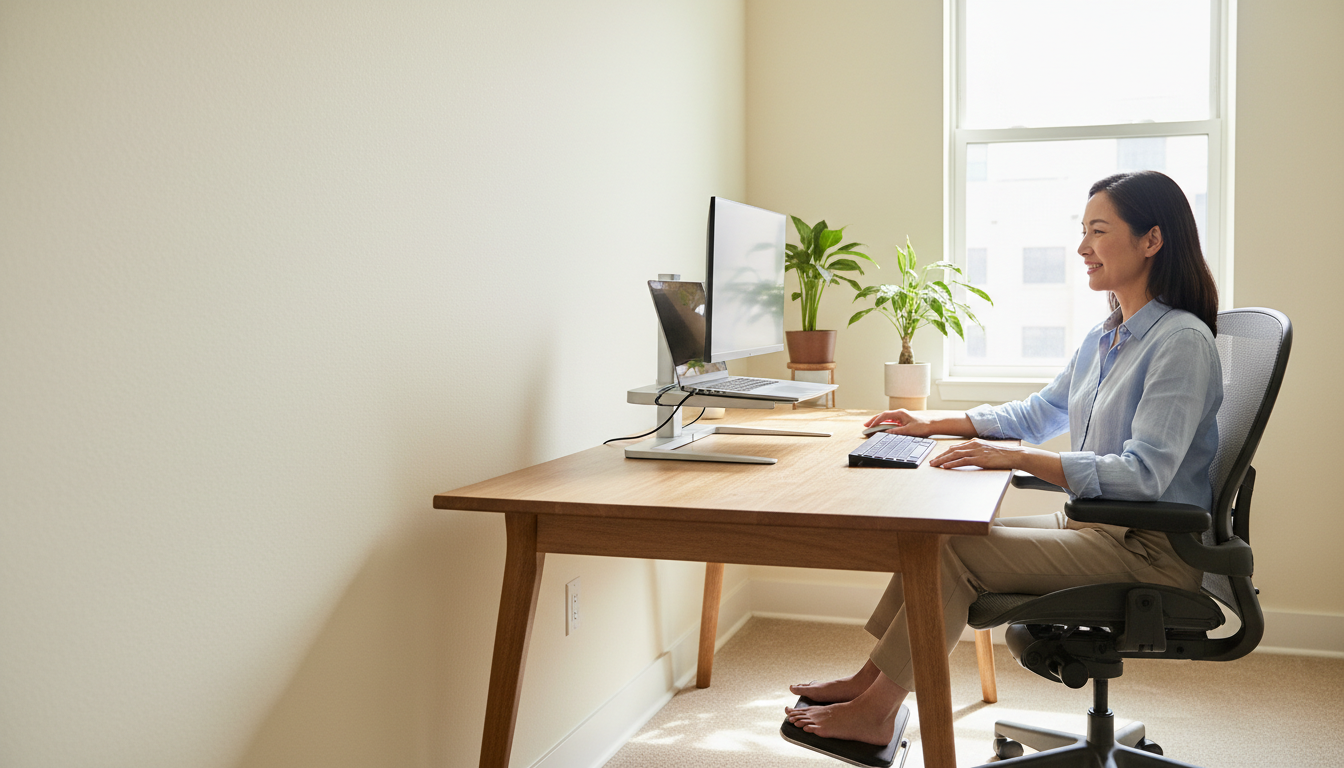
A stable chair should let you sit with your back supported and feet resting comfortably on the floor or a stable footrest. The front edge of the seat should not press painfully against the backs of your knees.
If the desk is too high and the chair must rise, a footrest may improve support. If your chair is too low and nonadjustable, avoid stacking unstable cushions. Consider safe changes or ask your workplace about accessible equipment.
3. Bring the keyboard and mouse closer
Your elbows should generally be near your torso rather than stretched far ahead, and your wrists should remain in line with your forearms instead of sharply bent. A mouse placed next to the keyboard can reduce repeated long reaches.
The goal is not to hold your shoulders rigid. Keep them relaxed and allow posture changes. If pain or numbness is persistent, professional evaluation may be needed rather than simply purchasing a different mouse.
4. Reduce glare before adjusting your neck
A bright window behind the screen can create reflections; a window directly in front of your eyes can also feel uncomfortable. OSHA suggests placing the monitor with attention to window position, brightness and contrast. In many settings, positioning it perpendicular to a window helps.
Try closing a shade, changing the screen angle or using softer lighting. Choose a readable font size and good contrast. Screen filters are optional and not a universal fix.
5. Check the laptop trade-off
A laptop puts its keyboard and screen close together, which can make it harder to place both at comfortable heights during long typing sessions. If you regularly work at one spot, an external keyboard and mouse may make the screen easier to position.
You do not need to buy every accessory at once. Try one change that solves your biggest problem and review whether your setup remains stable and accessible.
6. Include movement and changes of position
Even a carefully arranged workstation is not a reason to remain motionless all day. OSHA encourages varied work tasks, micro-breaks and changes between seated and standing activities when appropriate.
Choose movement options that match your job and physical abilities. A short walk or comfortable posture change may be more useful than a highly specific stretching routine you cannot maintain.
A 10-minute self-audit for your workspace
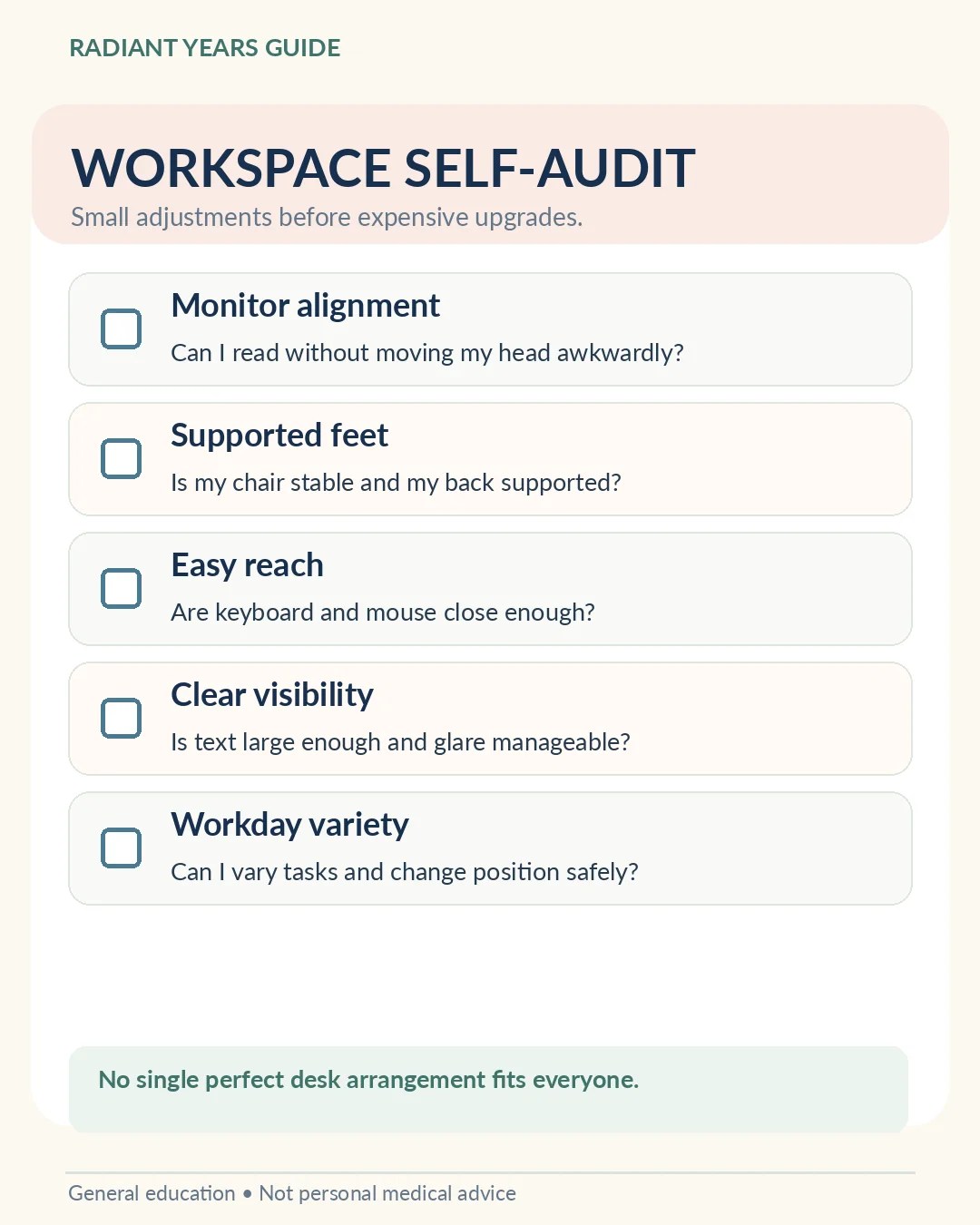
- Minute 1–2: Sit as you usually work. Notice whether your head turns or leans to see the screen.
- Minute 3–4: Check back support, chair stability and whether your feet are supported.
- Minute 5–6: Move the keyboard and mouse closer if needed. Notice whether wrists are awkwardly bent.
- Minute 7–8: Check text size, reflections and lighting.
- Minute 9–10: Choose one realistic adjustment and one natural opportunity to move later.
Low-cost changes worth trying first
Move the screen, raise text size, clear space under the desk, change the position of a lamp, and place regularly used objects within comfortable reach. If a setup change involves mounting a heavy screen, lifting furniture or electrical work, follow safe installation practices.
Furniture purchases should follow a clear problem, not an advertising promise. A more expensive chair does not automatically fit your body or solve persistent symptoms.
When to get help rather than self-adjusting
Ongoing pain, tingling, loss of strength, headaches or significant visual difficulties may have causes beyond workstation design. Seek qualified medical or occupational health advice. Employers may also have responsibilities to provide appropriate arrangements or reasonable accommodations.
Frequently asked questions
Do I need a standing desk to work comfortably?
No. Adjustable equipment may help, but a suitable seated setup and opportunities to change position can also be useful. Standing for long periods can be uncomfortable, too.
Does everyone need the monitor at exactly the same height?
No. OSHA offers general alignment principles; vision correction, posture, display type and accessibility needs may require adjustments.
Is this advice a medical treatment for neck pain?
No. It is a workstation evaluation guide, not a diagnosis or treatment plan.
Official references
- OSHA — Computer Workstation Evaluation Checklist
- OSHA — Monitor Placement and Viewing Considerations
- OSHA — Computer Workstations Overview
Keep exploring Radiant Years Guide
- Easy Movement Breaks for Desk Workers — Build movement into your workday.
- A Five-Minute Stress Reset — Try a low-pressure pause between tasks.
- A Beginner-Friendly Walking Routine — Make off-screen movement more approachable.
Editorial note: General ergonomic education informed by public OSHA resources. No specific equipment is endorsed, and this article is not professional medical, occupational therapy, or workplace legal advice. Images illustrate possible arrangements, not guaranteed outcomes.
